
iOS forensics

Day by day, smartphones and tablets are becoming ever more popular, and as a result, the technology used in development to add new features or improve the security of such devices is advancing too fast. iPhone and iPad are the game-changer products launched by Apple. Apple operating system (IOS) devices started growing popular in the mobile world. The latest smartphones or tablets can perform ideally most of the tasks which could be performed on a laptop or personal computer.
IOS devices provide larger storage space that could store emails, browsing histories, chat histories, Wi-Fi data and GPS data and more. From the forensics perspective, such devices could present lots of useful artifacts during the investigation. There are well-defined procedures to extract and analyze data from IOS devices which are included in this paper. This paper could be divided into the following sections. Introduction to the forensic processes focused towards mobile forensics, extracting logical and physical data from the IOS devices, IOS file system and storage analysis, analysis of logical data, data from the iTunes and iCloud back up, Wi-Fi and GPS data.
Overview of mobile forensics processes
Mobile forensics is a field of digital forensics which is focused on mobile devices which are growing very fast. Due to the exponential growth of the mobile market, the importance of mobile forensics has also increased. The mobile phone generally belongs to a single person so analysis of it could reveal lots of personal information.
Due to the rapid growth, it also introduced challenges. The ratio of new models designed and launched is very high which makes it very difficult to follow similar procedures. Each case or investigation of the new model needs to be considered differently and requires following steps that could be different and unique to the case. With these challenges in mobile forensics, syncing mobiles phone to a computer using software becomes easy. One could extract data like SMS, contacts, installed applications, GPS data and emails, deleted data.
Collection
Below steps are recommended to follow during the collection of mobile device
- Note location from where mobile has been collected. It is good practice to take a picture using the camera of the location and mobile phone before starting any progress.
- Note the status of the device. Whether it's powered off or on. If it is power on then, check the battery status, network status. Check where the screen is locked.
- Search for the SIM package and if any cables are located around
Preservation
Preservation of evidence is a very crucial step in digital forensics. If it is very important to maintain evidence integrity throughout the investigation. For mobile forensics below steps are good practices to follow:
- It is possible that attackers could remotely wipe data or any new activity could override the existing data. So, the first step should be to isolate the mobile device from the network.
- There are several ways that could be followed according to the scenario,
- Removing SIM card
- Switching to Airplane mode
- Use Faraday's Bag or Jammer
- Chain of Custody - Chain of custody is the document to maintain each record of the Digital evidence from the collection to presentation. It includes details like serial no, case no, locker no,
- Investigator's name, time and date of each step, Details of evidence transportation. It is crucial because it keeps track of the Digital evidence.
- Hashing - Hashing is the method used to prove the integrity of the evidence. MD5 or SHA are widely used algorithms to calculate the Hash values of the evidence. As previously mentioned it is almost impossible to interact with mobile devices without altering them. But we could calculate the hash value of the extracted data through logical extraction or of the image file extracted through physical extraction.
Acquisition
There are three methods used for the data extraction from the IOS devices. Below overview has been given about each.
- Physical - It is a bit-to-bit copy of the device and allows recovering deleted data. Unfortunately, with mobile forensic always it is not possible to use this method.
- File system - This method would extract files that are visible at the file system level.
- Logical - This method allows to extract particular files from the file system like backup taken using iTunes Sometimes needs to perform offensive techniques like password cracking, Jail Breaking.
iOS devices and file system
Apple developed an operating system for iPhone, iPad and iPod Touch which is known as the IOS operating system. Devices running on IOS operating system are called IOS devices.
HFS+ file system
Apple developed Hierarchical File System (HFS) which provides large data sets. Disk formatted with HFS has 512-byte Blocks at Physical level.
There are two types of Blocks in the HFS.
Logical Blocks, which are numbered from first to last within the volume. They are also the size of 512 bytes same as physical blocks.
Allocation blocks are a group of logical blocks used to track data. Allocation blocks are further grouped together called clumps to reduce fragmentation on volume.
HFS uses both absolute time (Local time) as well as UNIX time so one can identify the location of the system.
HFS files system uses catalog file system to organize data. It uses B * tree (Balanced tree) structure to organize data. Trees are consisting of nodes. When data are added or deleted, it runs the algorithm to keep balance.
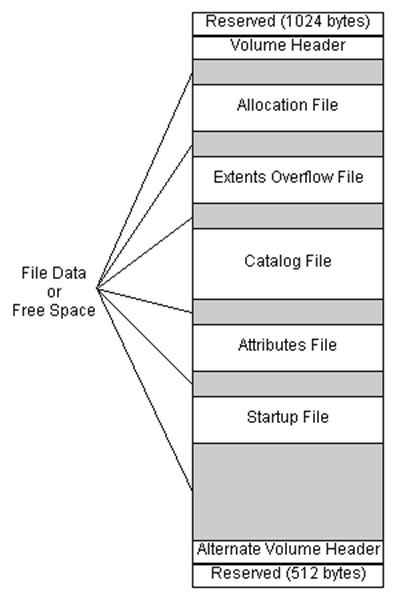
Figure 1. Structure of HFS+ File system
- As seen in above figure, first 1024 bytes are reserved boot blocks.
- Volume Header: This contains information about the structure of HFS Volume. It keeps track of Catalog ID Numbering and increases it one each time file added. HFS+ volume header also contains signature "H+."
- Allocation file: This keeps track of allocation blocks used by the file system. It basically includes a bitmap. Each bit represents the status of the allocation block. If it is set to 1, that means Allocation block is used, and if it is 0, that means allocation block is not used.
- Extent Overflow file: This consists of a pointer to the extent of the. If the file is larger than eight contiguous allocation blocks, then it uses extents.
- Catalog File: This organizes data using balanced tree system as mentioned previously. It utilizes to find the location of file or folder within the volume. It also contains the metadata of a file, including creation and modification date as well as permissions.
- Attribute File: This contains the customizable attributes of a file.
- Startup File: This assists the booting system which does not have built-in ROM support.
- Actual data is stored in the file system and tracked by the file system.
- Alternate Volume Header: This is a Backup Volume header located at the last 1024 bytes of the volume. It is 512 bytes long.
- The last 512 Bytes are reserved.
- HFSX File System
HFSX file system is a variation of HFS+ file system which is used in the Apple mobile devices. There is only one variation which is that it is case sensitive and it allows having two files with similar names but different case.
Partitions
IOS Devices have two types of partitions. System partition and Data Partition
System Partition
System partition does not contain more artifacts related to the investigation as it contains mostly system-related information like IOS operating system and pre-installed applications. The system partition is a Read-only as visible in below output of Private/etc./fstab.

Figure 1. fstab
An iPhone has a single disk, hence it is denoted as Disk0. The system partition is Disk0s1, and Data Partition is Disk0s2.

Figure 2. System Partition
We can find the user-configured password from the /private/etc./passwd file as shown below.

Figure 3. Passwd file
As seen in above screenshot, mobile and root password hashes can be retrieved from the passwd file. Further using password cracking tool like "John the Ripper" one can get the password. The root password is "Alpine" and which is the default for all the IOS devices.
Data Partition
Data partition contains user data and can provide lots of artifacts during the investigation. It is a Read/Write partition. The structure of this partition has been changed with the different version of the IOS. Below is the screenshot from the IOS device which is running on IOS 7.

Figure 4. Data Partition
The below directories are listed which could be of interest for the artifacts.
- Keychains - Keychain.db, which contains user password from various applications
- Logs - General.log: The OS version and Serial number, Lockdown.log - Lockdown Daemon log
- Mobile - User Data
- Preferences - system configurations
- Run - system logs
- Tmp -manifest.Plist: Plist Back up
- Root - Caches, Lockdown, and Preferences
- Property List Files
Property lists are the XML files used in the management of configuration of OS and applications. These files contain useful artifacts related to web cookies, email accounts, GPS Map routes and searches system configuration preferences, browsing history and bookmarks. These files could be open to the simple text editor to view the contents.

Figure 5. Plist
SQLite databases
Logical extraction of the iPhone could provide lots of SQLite database files as it uses SQLite databases to store user data, the tool SQLite browser is used to explore and read SQLite database which can be download from http://sqlitebrowser.org/
The main three databases are Call History, Address Book, and SMS databases.
These databases could be extracted through applications available like SQLite database Browser as seen in the screenshot below.

Figure 6. SQLite Database Browser
Acquisition of iOS devices
Phone identification
During search and seizure, it is necessary that the examiner identifies the Phone model.
- One method is that check the back of the device which contains the model number printed

Figure 7. Model number printed on the back of the device
- Another approach is connecting iPhone to the forensic workstation. Install the library libimobiledevice on your workstation, it supports Windows, MAC and Linux up to 10.3 it can be downloaded from the URL http://www.libimobiledevice.org/ installation steps in details are explained here http://krypted.com/mac-os-x/use-libimobiledevice-to-view-ios-logs/
- Regardless of Phone is locked or unlocked; some information can be gathered about connected iDevice using command ideviceinfo as shown in below screenshot.

Figure 8. iDeviceinfo
As seen in the above figure, we could extract the following listed important information about iDevice
Device Class, Device Name, WiFiAddress, TelephonyCapability and HardwareModel, IOSversion
Operating modes of iOS devices
IOS devices can be operated in three modes. 1) Normal mode 2) Recovery mode and 3) DFU mode. It is necessary that examiner or Investigator should be aware of this mode as this knowledge is required to decide during the investigation that on which mode device should be operated to extract data or efficient extraction of data.
Normal mode
When iPhone is switched on, it boots in an operating system, this is normal mode. In normal mode, the user could perform all regular activities.
The normal mode boot process consists of three steps: Low-Level Bootloader, iBook and iOS kernel. These boot steps are signed to keep the integrity of the process.
Recovery Mode
The device enters into recovery mode if during the normal boot process if any step is failed to load or verify. The screenshot below shows the screen during recovery mode.

Figure 9. Screen during Recovery mode
This mode is used to perform upgrades or restore iPhone devices. iPhone can be entered in recovery mode by following the steps below:
- Turn off the device by holding the power button on the top of the device
- Hold home button of phone and connect it to the computer using a USB cable
- Keep holding home button till Connect to the iPhone screen doesn't appear and then home button could be released.
- Reboot device to exit the recovery mode
DFU mode
Device Firmware Upgrade mode is used to perform IOS upgrading, and it is a low-level mode for diagnosis. During boot up, if Boot ROM is not getting a load or verify, then iPhone presents the Black screen.
The phone should be in DFU mode while using most acquisition techniques. Below steps needs to be performed to enter the iPhone in DFU mode.
- Install iTunes on a Forensic workstation and connect Phone to the forensic workstation using USB.
- Switch off Phone
- Hold the power button for 3 seconds
- Hold home button with power button hold for 10 seconds
- Release the power button and hold home button still didn't get alerted in iTunes that iPhone in recovery mode has been detected by iTunes.
Breaking passcodes
There are different methods of breaking the passcode of IOS. Depending on the version of IOS select the appropriate method. There are various tools that can perform such activity such as IP-Box, UFED lock recovery tool being a commercial tool and a python script in open source. We would be demonstrating a few of the methods of breaking passcodes for IOS.
Using IP-Box to break Phone passcode
If the device is locked using a four-digit passcode, then there are few tools available that could break this passcode.
The IP-BOX device does a similar task for more information you can visit the URL
IP-BOX is supported for devices up to IOS version 8.1.2. This kit contains Box, iPhone cable, USB cable, IP-BOX software used to configure patterns and using that IP-BOX firmware can be updated.
IP-BOX once connected to the iPhone as shown in below figure, it would send predefined passcodes to the phones. These codes are from 0000 to 9999. The screenshot below shows the detected passcode of the iPhone using IP-BOX

Figure 10. Passcode detected using IP-BOX
Using Python script to Bruteforce passcode
Performing Bruteforce attack on iPhone at springboard level could lead to wiping data within the phone. But this protection mechanism is not getting applied at kernel extension. Some tools can access the forensic workstation on which iPhone is connected and could perform brute force attack by accessing pairing key through an escrow file to decrypt phone.
To perform this examiner could follow the steps below:
- Connect iPhone to the Mac system
- Get the script file from link and run the python script
These scripts communicate with the RAM disk on the Phone through Tcprelay.py with opened port 1999. This dumps the data protection keys into a directory named UDID by Brute forcing the system passcode and decrypting the System Keybag. Running the script would give the result as shown above. Now to brute force we need to hit the enter as mentioned by the script.

Figure 11. Bruteforce performed using Script
UFED User Lock Code Recovery
This is a commercial tool licensed under Cellebrite that uses the same technique as IP-BOX. It requires a cable and camera to sense the screen of the connected Phone. As per the screenshot below, it can crack passcodes of IOS devices as well as Android.
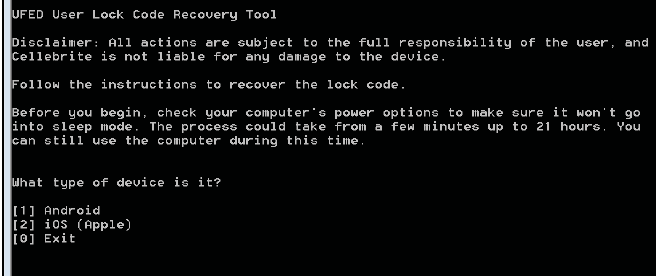
Figure 12. UFED User Lock Code Recovery Tool
Direct acquisition
iDevice browser can be used to directly acquire data if the phone is not locked or lock down certificates is known. This is a very simple method as upon connecting the phone to the forensic workstation, iDevice Browser lists the files as shown below.

Figure 13. iDevice browser
Such software is working on forensic platforms that mean they could modify the data or accidentally override the evidence. iMazing, iFunBox, iExplorer, Wondershare Dr. Fone are tools that use the libraries from iTunes hence it requires an updated version of iTunes. These tools are running on Windows or MAC platforms. Before connecting the iPhone to the device, make sure the automatic syncing option is enabled on iTunes.
This method is a very simple way to copy data using the browser. One can use logical acquisition method using the iDevice browser as an alternate, and it depends on the scenario. Another tool that can perform logical acquisition is described below.
Logical acquisition
Logical acquisition can be performed with the help of various commercial tools such as Oxygen Forensic Suite, UFED physical analyzer, Cellebrite, Blacklight, XRY. We would be demonstrating Logical Acquisition with the help of Oxygen forensic suite and UFED physical analyzer tools below.
Logical Acquisition using Oxygen Forensic Suite
Using Oxygen Forensic Suite which is a commercial tool, we could perform logical acquisition of iPhone. Steps as described as below
- Launch the Oxygen Forensic Suite. Select the Connect device option to start extraction.
- It would prompt to select automatically connect a device or manually connect the device. It is recommended to use the First option which is automatically connecting the phone. Oxygen forensic suite would start searching for the phone once selected automatically connects option.
- The software will provide UUID of the detected phone and if the phone is password protected and locked it would ask to provide a password or lock down certificate.
As shown in below figure, if the password is known then examiner needs to enter and authorize password on the device and select the option "I entered the passcode. Press to connect" or select lockdown plist.

Figure 14. Enter a passcode or choose lockdown certificate
- After the successful connection gets established, the software would display information about the connected device. Information is like a model, IMEI number, boot loader and IOS version information.
- The next window provides an option to insert case-related data like Device name, Device Owner, Evidence Number. It also asks password for the Backup.
- Next windows would allow choosing types of data that want to be extracted. Recommended action is to select all.

Figure 15. Data to be extracted
- Software now starts to extract data, and at the same time, it parses the data extracted. If Phone backup is password protected, then the extractor would pass data to the Passware kit to perform the attack.
- If examiner knows the backup password, then password cracking step could be skipped by the examiner and could supply the password. If password cracking is successful then it would extract all the data from the Backup otherwise only multimedia data like Images, Videos would be extracted, and examiner would not be able to get any information about installed or preinstalled applications.

Figure 16. Passware Kit password cracking


CompTIA CySA+
Discover the latest salary trends for CompTIA CySA+ certified professionals in 2024. Learn what factors influence your earning potential in the cybersecurity field.


Cybercrime investigator
Cybercrime has hit record levels, with an expected $7 trillion USD to be made from cybercriminal activity by 2021. Investigating these sorts of crimes can be

EC-Council CEH
CEH v13 is the world's first AI-powered ethical hacking certification. Discover what's new, how it compares to v12/v11 and why it's a career game-changer.

CompTIA SecurityX
Explore the expert-level CompTIA SecurityX certification, what to expect on the exam, the career benefits and more.
